
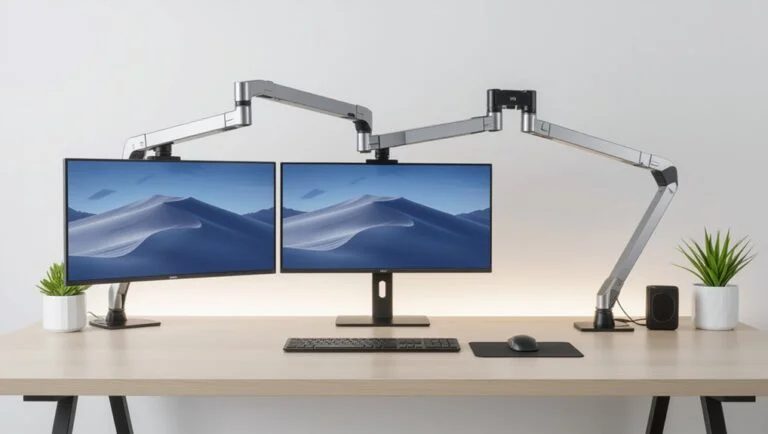
A monitor at the wrong height is the most common ergonomic fault in home offices, and the cheapest to fix. The screen that came with a short factory stand sits 4–6 inches too low, your neck tilts down to meet it, and by late afternoon the back of your neck is doing work it was never designed for.
Two products solve this: a monitor arm, which clamps to the desk and holds the screen on an articulated mount, and a monitor stand, a raised platform the screen sits on. They look like alternatives. In practice they solve different problems, and this guide compares them on the factors that matter: adjustability, desk space, stability, cost, and what happens when your setup changes.
Direct answer: A monitor arm is best for most people: it adjusts in seconds and frees desk space. Choose a monitor stand for simplicity or renting, where no clamp is needed; either way, put the top of the screen at eye level.
The short version
| Best for most people | Monitor arm — adjusts in seconds, frees the desk |
| Best for simplicity | Monitor stand — no assembly, no clamp, nothing to fail |
| Best for dual monitors | Monitor arm, clearly |
| Best for renters | Monitor stand — no clamp marks on the desk |
| Best for neck comfort | Whichever one puts the screen top at eye level — the arm just does it more precisely |
In this guide
- The neck-height test
- Adjustability: the arm's decisive advantage
- Desk space: what you gain and what you lose
- Stability and wobble
- Dual monitors: where the arm pulls away
- Cost: the stand's best argument
- Installation and renters
- Cable management
- What about ultrawide and heavy monitors
- The verdict
- Frequently asked questions
The neck-height test
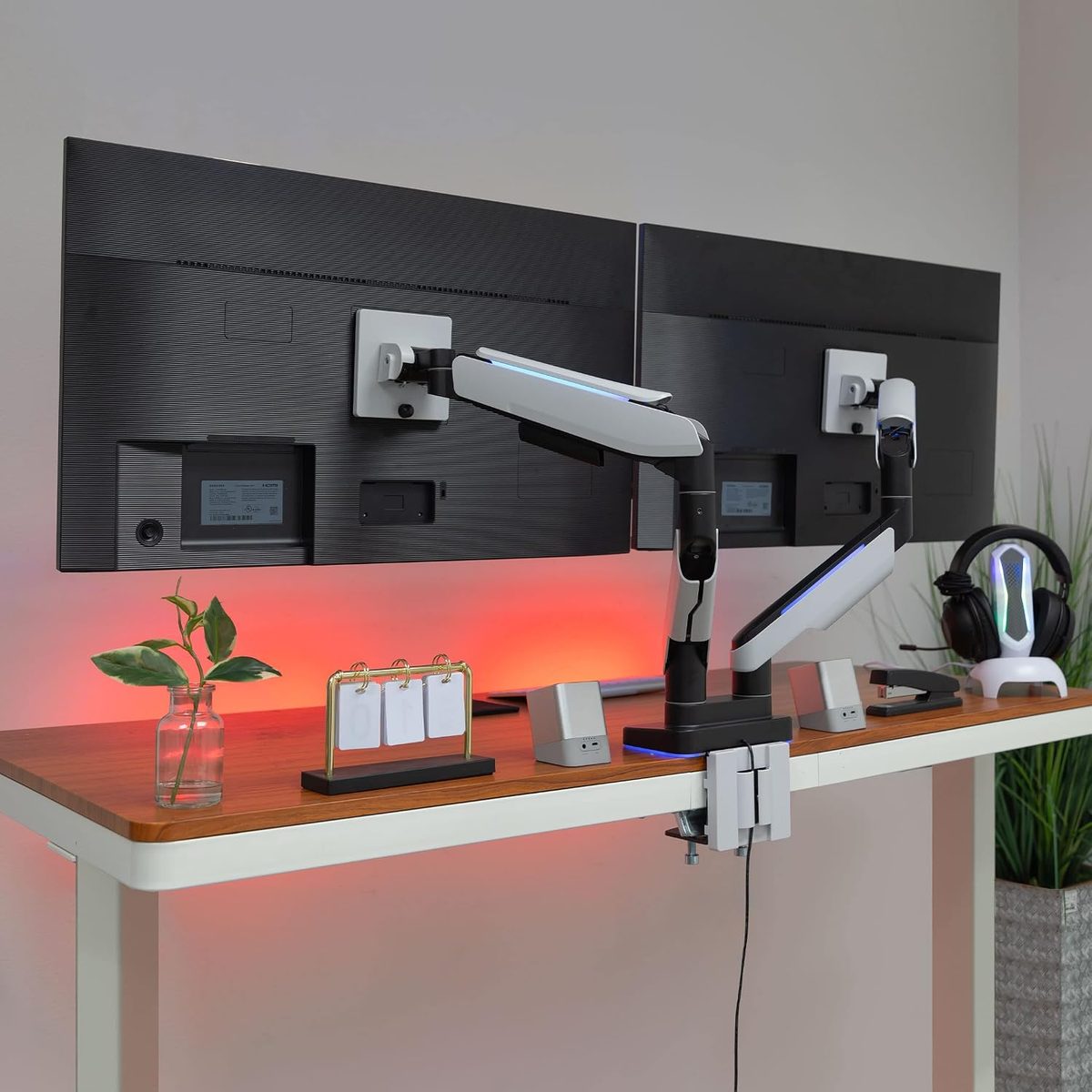
The rule is simple: the top of the screen should sit at or just below eye level, about an arm's length away. Get that right and the neck stays neutral; get it wrong by even two inches and the neck compensates all day.
A monitor arm hits this target precisely — you move the screen to your eye level, whatever your height and chair. A stand hits it approximately: stands come in fixed heights, typically 3–5 inches of lift, which suits some people exactly and others not at all. If the stand's height is wrong for you, the fix is shims or a different stand.
Adjustability: the arm's decisive advantage
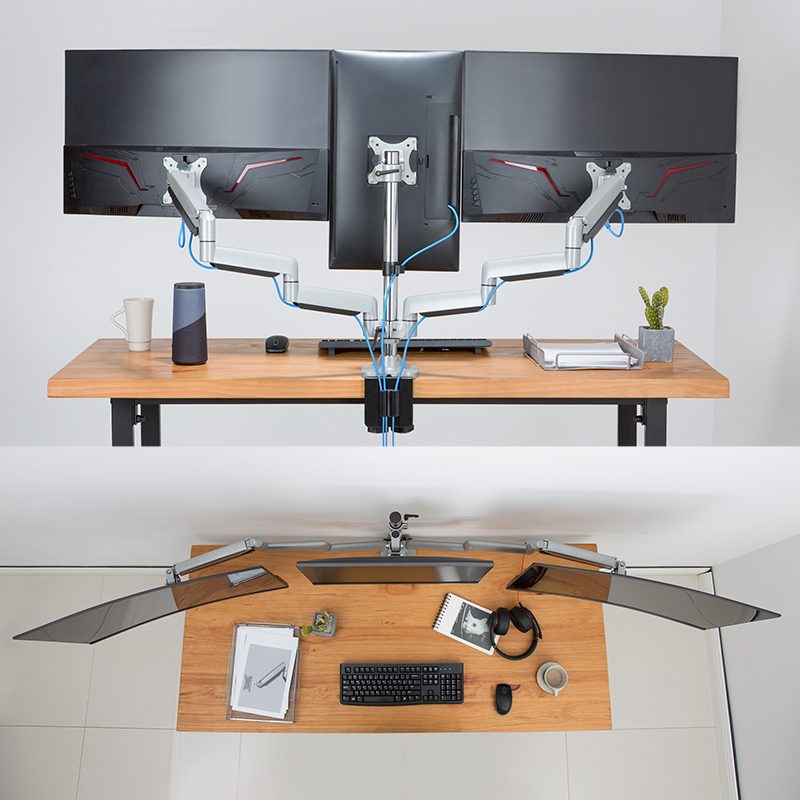
An arm adjusts height, tilt, swivel and rotation — in seconds, with one hand, while you are sitting there. That matters more than it sounds: you adjust the screen when you change chairs, when you switch from sitting to standing, when a colleague looks over your shoulder, when the afternoon sun moves. A stand adjusts never.
Gas-spring arms, like the HUANUO dual arm in our The shop, hold their position under the screen's weight and move smoothly. Cheaper fixed arms need a tool to adjust — better than a stand, but not by as much as the price suggests. Check the arm type before buying: gas spring is worth the small premium.
Desk space: what you gain and what you lose
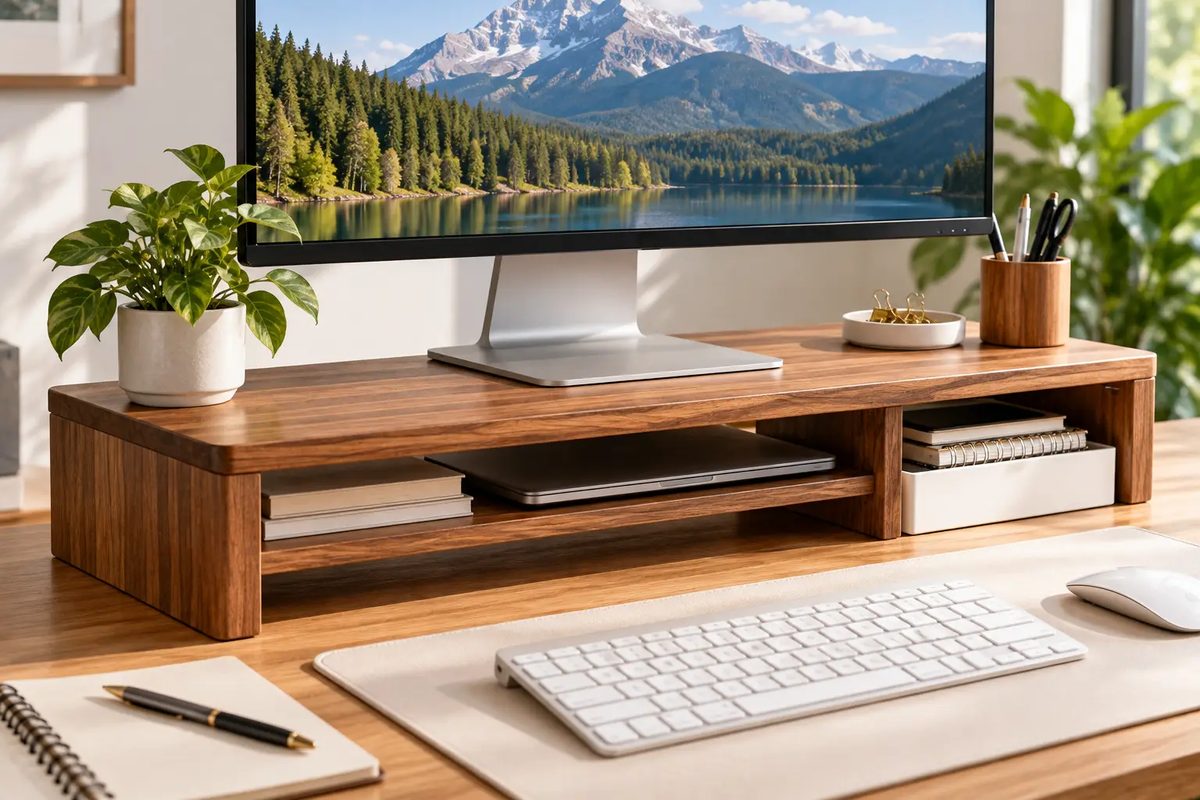
An arm frees the entire footprint under the screen — the desk surface where the factory stand sat becomes usable space for a notebook, a keyboard tray or nothing at all, which in a small room is its own luxury. The clamp takes a few inches at the desk's back edge.
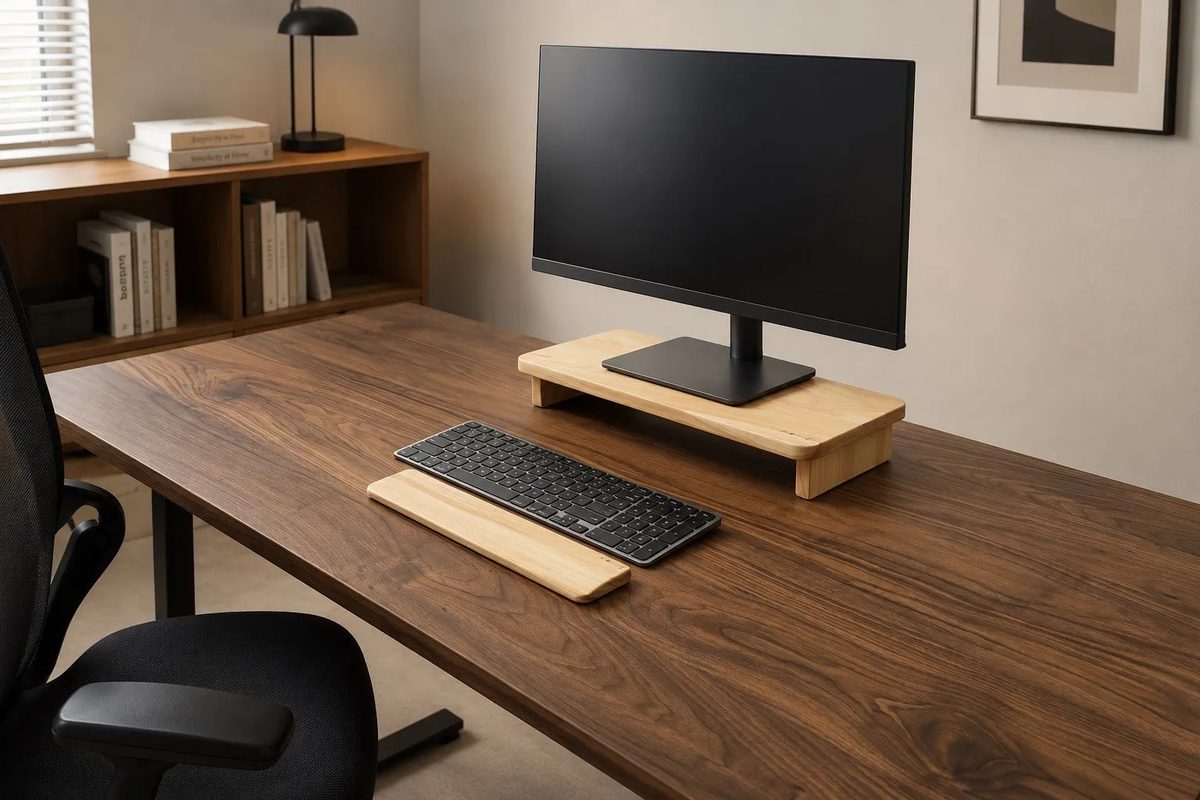
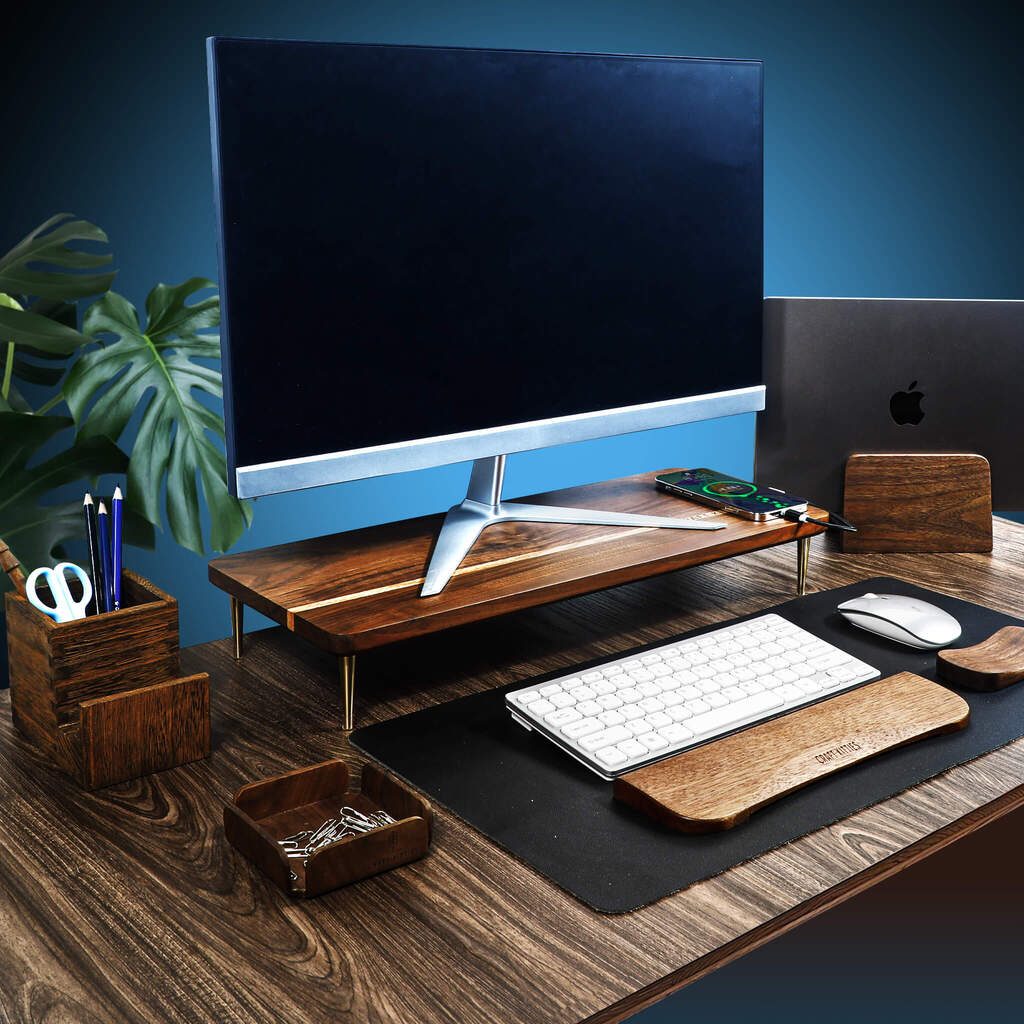
A stand does the opposite: it occupies desk space but gives some back as a shelf. The space under a monitor stand fits a keyboard, a notebook or a small drawer unit. In a deep desk this is a genuine storage win; in a shallow desk it is a shelf you did not need on space you cannot spare.
Stability and wobble
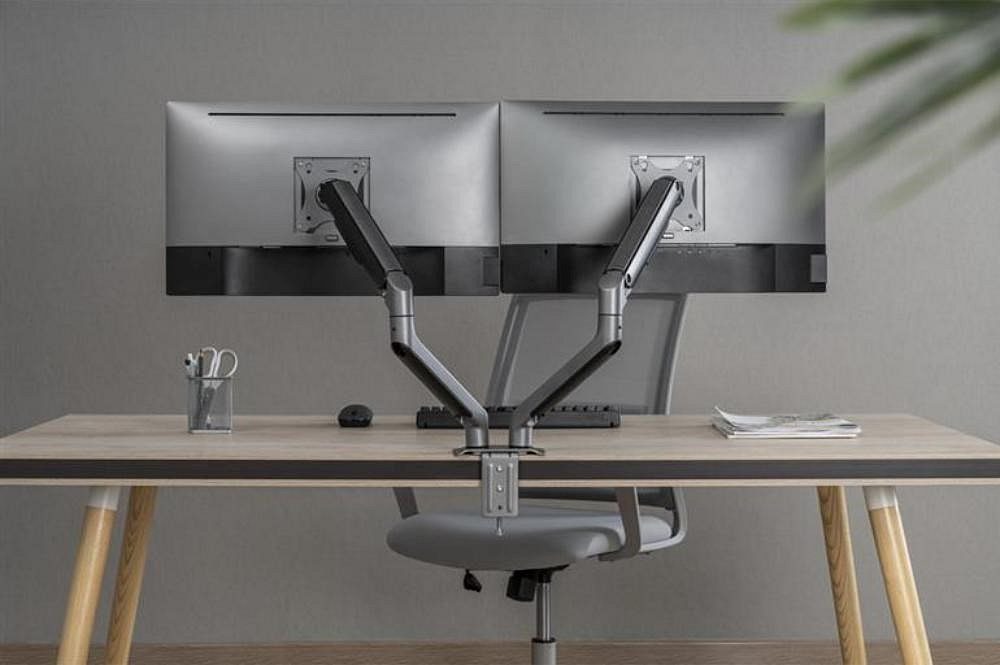
A good arm is stable: the screen does not wobble when you type, because the arm's joints are tensioned and the clamp grips the desk. Cheap arms wobble — the screen shivers with every keystroke — which is tiring to look at and hard to diagnose until you have lived with it.
A stand is inherently stable: it is a platform, and platforms do not wobble. If your desk is light or thin, a stand avoids the clamp problem entirely — some clamps need a minimum desk thickness and a solid edge, and glass or very thin tops can crack under clamp pressure. Check your desk's edge before ordering an arm.
Dual monitors: where the arm pulls away
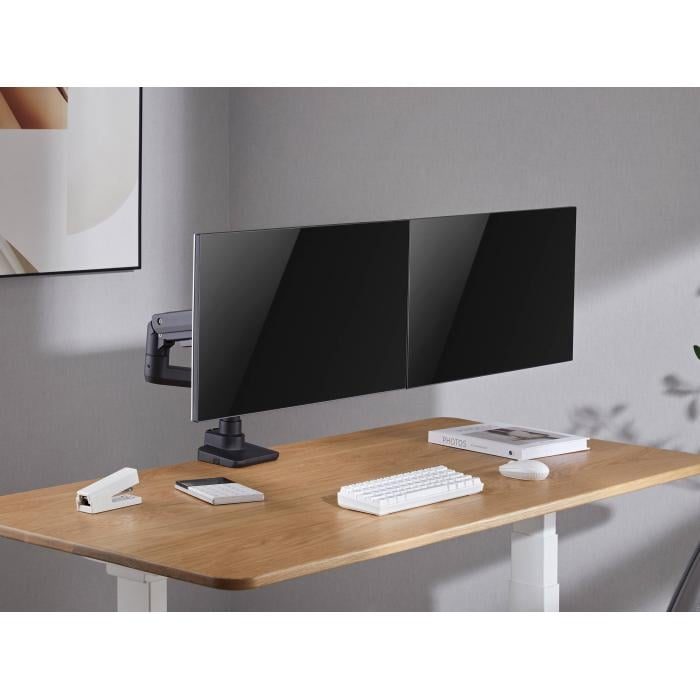
With two monitors, the arm's advantage becomes decisive. A dual arm aligns both screens at the same height, lets you angle them toward you, and adjusts both in seconds. Two stands cannot do this: each screen sits at its stand's fixed height, and matching them is luck.
Dual arms also handle mixed sizes — a 27-inch main screen and a vertical 24-inch second screen is a standard arm setup and an awkward stand setup. If you run two monitors, buy the arm. Our The shop lists the HUANUO dual arm we recommend.
Cost: the stand's best argument
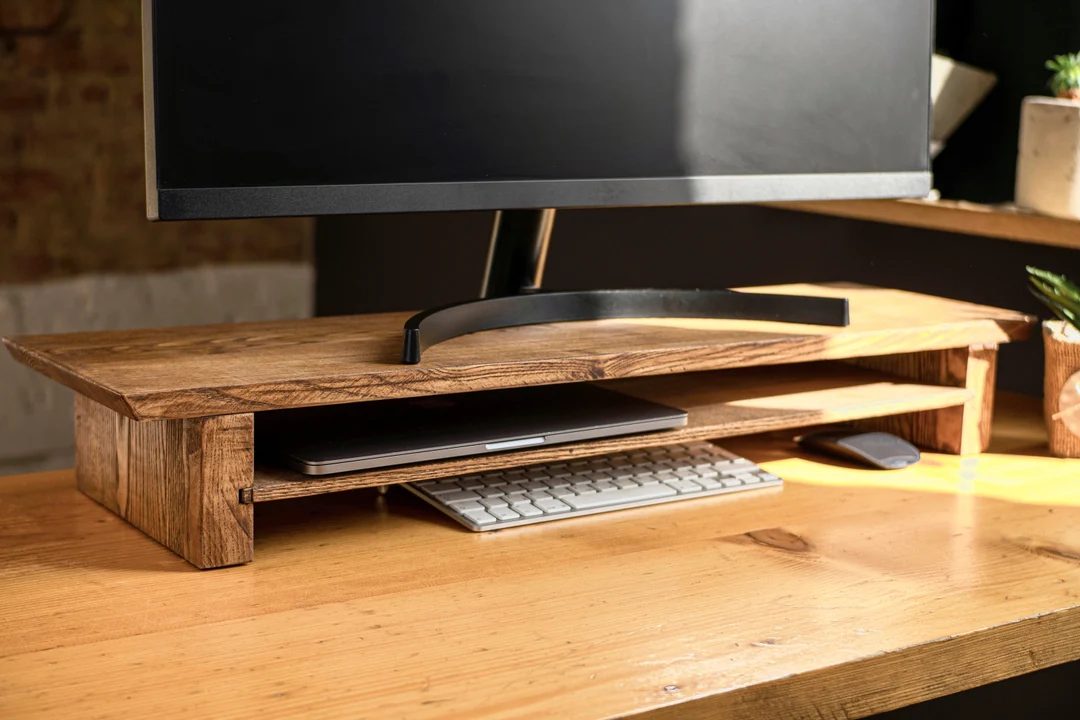
A decent monitor stand costs $25–50. A decent gas-spring arm costs $35–80 for a single screen, $60–120 for dual. The gap is real but small — and the arm replaces the stand permanently, while a stand often gets replaced by an arm later anyway.
The honest cost comparison includes the desk: an arm needs a desk edge it can clamp to, and some desks — glass tops, very thick tops, desks with a modesty panel — cannot take a clamp at all. In those cases the stand is not the cheaper option; it is the only option.
Installation and renters
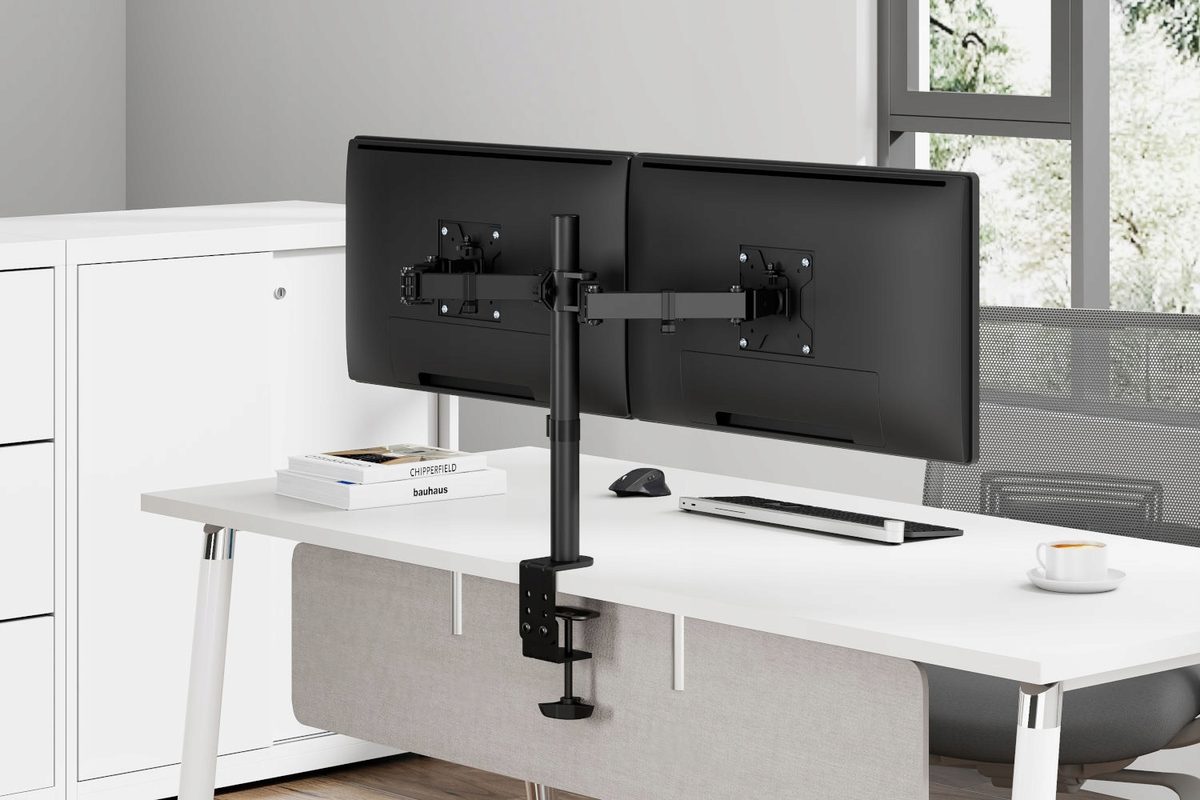
An arm takes 15–30 minutes to install: clamp, attach the VESA plate to the monitor, route the cables. A stand takes thirty seconds: put it on the desk, put the screen on it. If you move desks often or rent a furnished place, the stand's zero-installation appeal is real.
Renters should also note clamp marks: a clamp can dent a softwood desk edge. A small piece of felt or rubber between clamp and desk prevents it — a detail worth knowing before the landlord inspects the furniture.
Cable management
Arms usually include cable clips or channels along the arm, which route the power and video cables neatly down to the desk. The result is visibly tidier than a stand, where cables hang behind the platform.
The difference is cosmetic rather than ergonomic, but a tidy desk is a desk you can actually work at. If cable clutter bothers you, the arm helps; if it does not, ignore this factor entirely.
What about ultrawide and heavy monitors
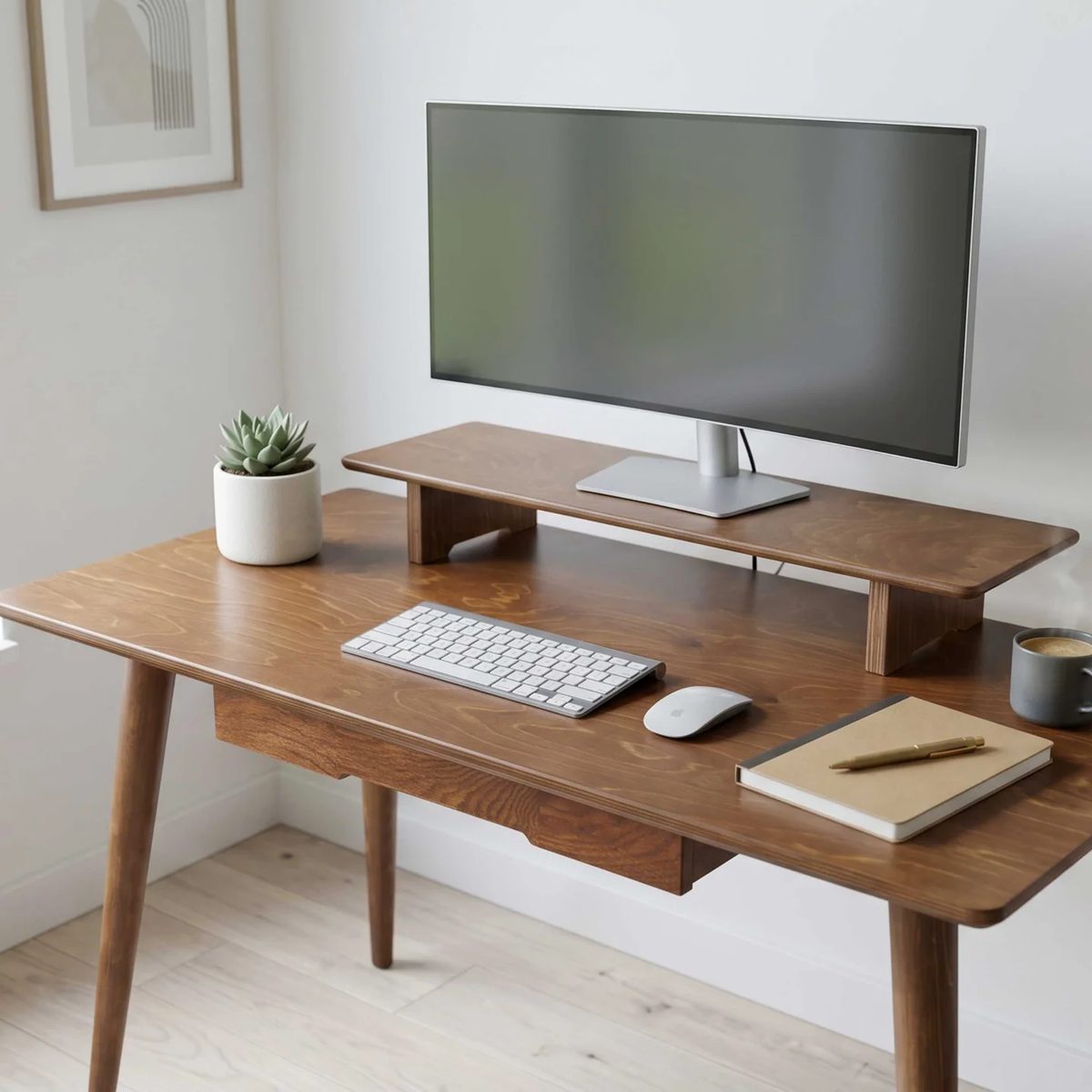
Ultrawide monitors are heavy and wide, and they punish weak arms: check the arm's weight rating and its maximum screen size, not just the VESA pattern. A 34-inch ultrawide can weigh 15–20 lb, which exceeds many budget arms' ratings. Heavy-duty arms exist and are worth the premium for ultrawides.
A stand has no weight problem — it is a platform — which makes it the safe choice for very heavy screens. If your monitor weighs over 20 lb, check the arm's rating carefully or default to a stand.
The verdict
Buy the arm unless you have a specific reason not to. The adjustability, the freed desk space and the dual-monitor handling make it the better ergonomic tool for most people, and the price gap over a stand is small. Buy the stand if your desk cannot take a clamp, if you move often, if you run one light monitor and want the simplest possible fix, or if you genuinely want the shelf space underneath.
Whichever you choose, set the height by the rule, not by feel: top of the screen at eye level, an arm's length away. Then check it again after a week — screens drift, chairs settle, and the right height on day one is not always the right height on day eight.
Frequently asked questions
Is a monitor arm better than a stand?
For most people, yes: it adjusts precisely, frees desk space and handles dual monitors. A stand wins on simplicity, stability and desks that cannot take a clamp.
Will a monitor arm fit my desk?
Most arms clamp to desks 0.4–3.5 in thick with a solid edge. Glass tops, very thick tops and desks with a rear modesty panel may not work — check the arm's clamp range and your desk's edge.
Do monitor arms wobble?
Good gas-spring arms do not wobble under normal typing. Cheap arms can shiver with keystrokes — read owner reviews for wobble complaints before buying.
Can I use a monitor arm with a laptop?
Yes, with a laptop tray attachment or a separate laptop arm. The simpler route for most laptop users is a laptop stand plus an external monitor on an arm.
What VESA size do I need?
Most monitors use 75 × 75 mm or 100 × 100 mm VESA patterns, and most arms support both. Check your monitor's manual — a few models, especially some curved screens, need an adapter.
How high should my monitor be?
Top of the screen at or just below eye level, 20–26 inches from your eyes. That is the single measurement that matters most for neck comfort.
Are dual monitor arms worth it?
If you run two monitors, yes — a dual arm aligns both screens precisely and adjusts them together. Two separate stands cannot match heights reliably.
Can a monitor arm damage my desk?
A clamp can dent softwood edges. Put a small piece of felt or rubber between the clamp and the desk, and do not over-tighten.